User impersonation is behind a feature flag. Contact support to enable it for your organization.
How it works
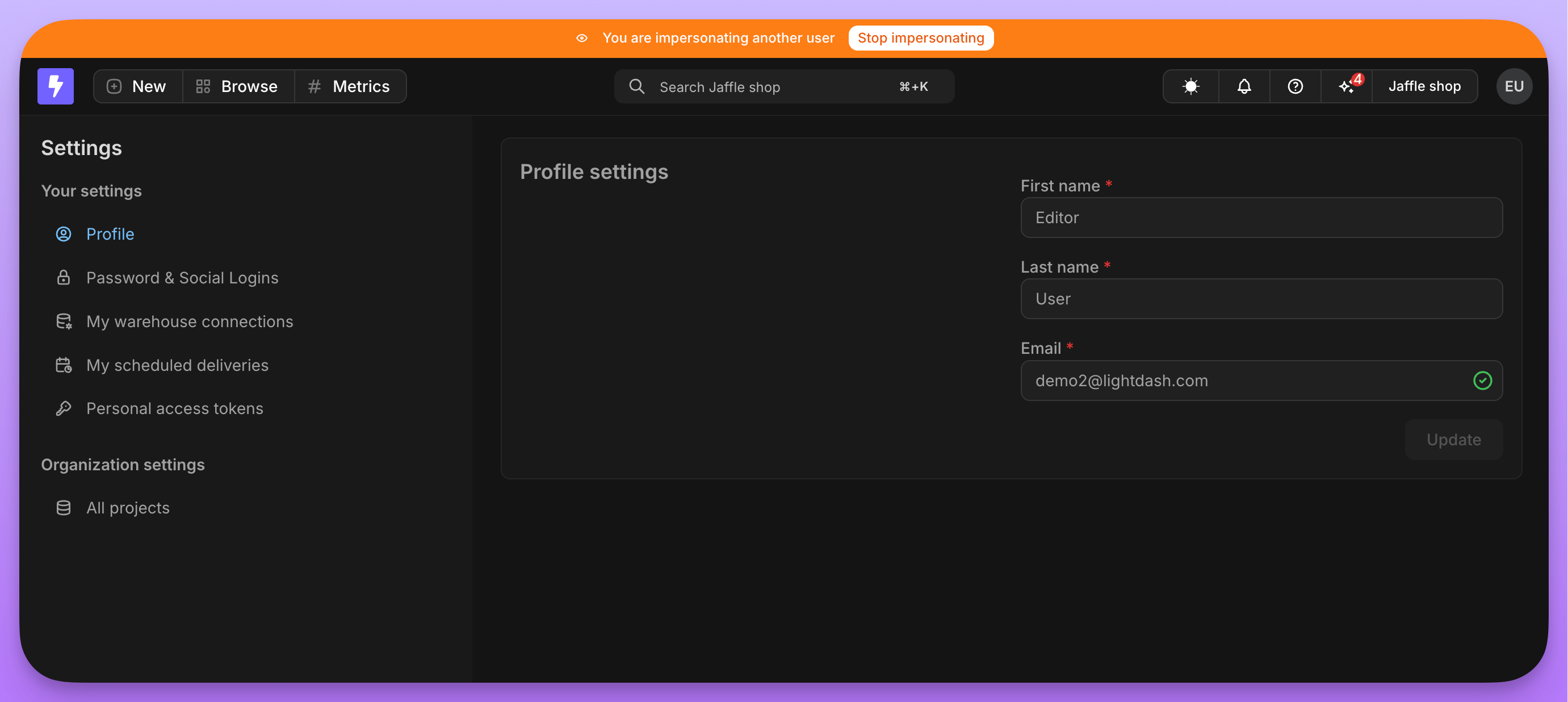
When you impersonate a user:- You see Lightdash exactly as that user sees it, including their permissions, spaces, and data access
- A banner appears at the top of the screen indicating you’re impersonating someone
- Each session has a hard limit of 15 minutes, after which it ends automatically and returns you to your admin view
- You can stop impersonation at any time by clicking the button in the banner
userUuid and the impersonated user’s userUuid.
If the project requires users to provide their own personal warehouse credentials, queries run with the impersonated user’s credentials, including SSO-backed credentials.
Who can use impersonation
Only organization admins can impersonate other users. You cannot impersonate users outside your organization.Enabling impersonation
If user impersonation is available on your instance, organization admins can enable it from the organization settings. Once enabled, admins will be able to impersonate other users in the organization. This setting can be turned off at any time.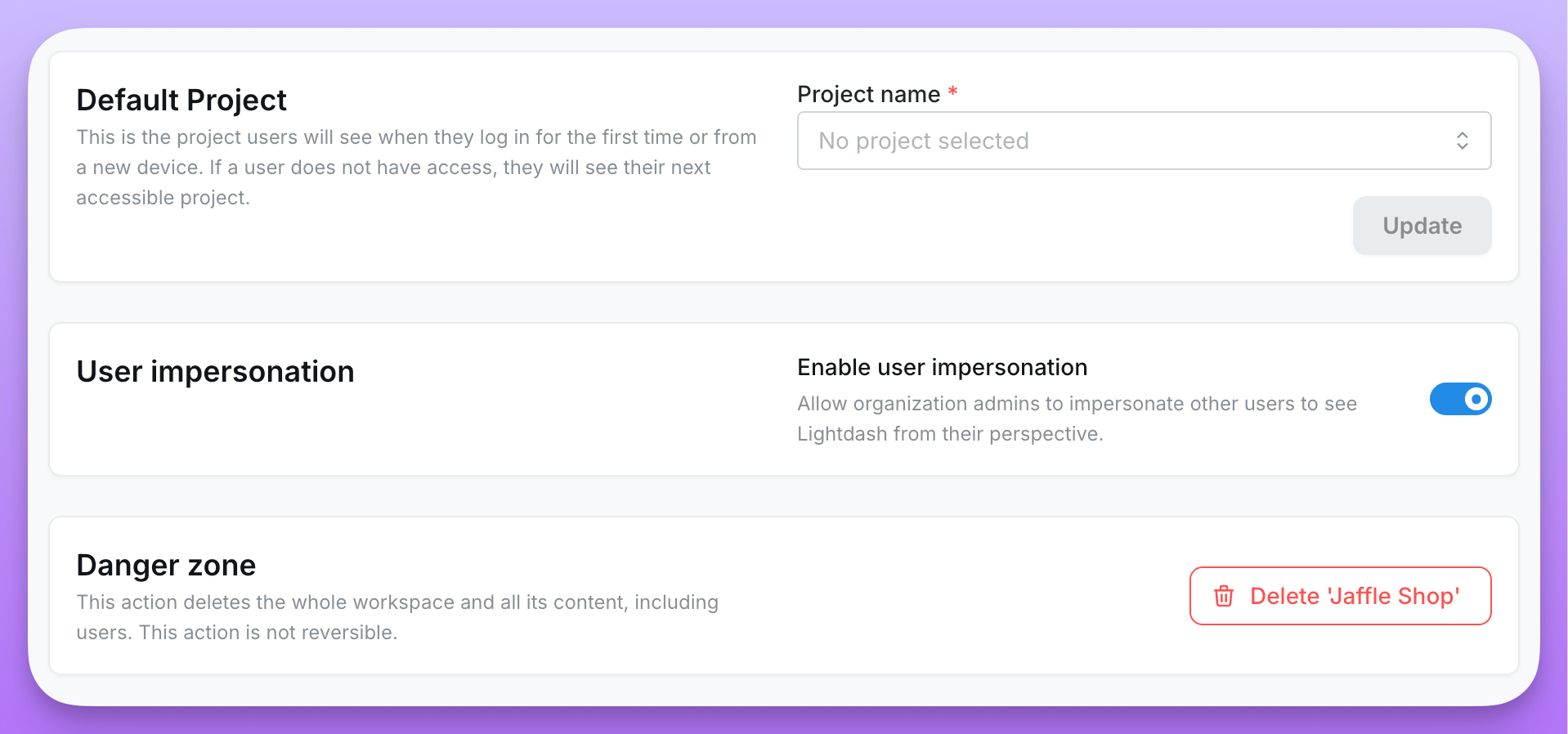
Starting impersonation
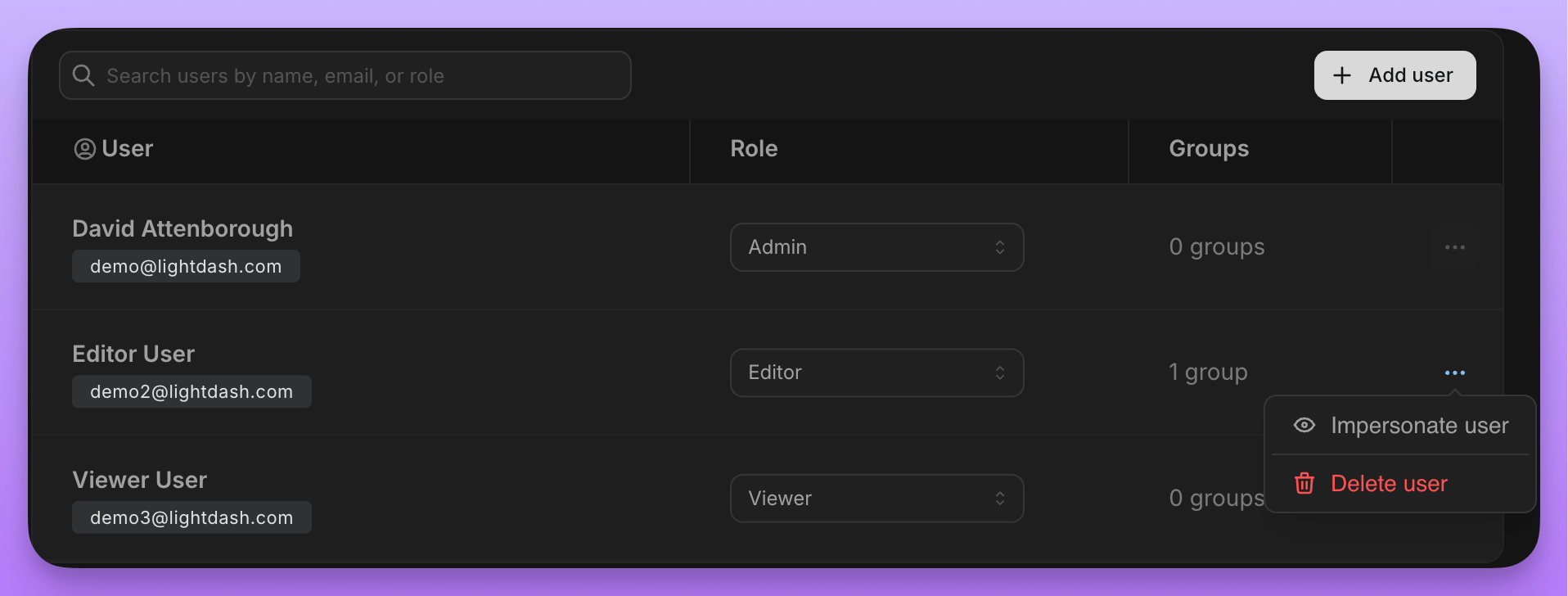
- Go to Settings > Users & Groups
- Find the user you want to impersonate
- Click the … menu next to their name
- Select Impersonate user