

Install the Slack integration
Only your Lightdash organization admins can add or configure the Slack integration.
Self-hosting Lightdash? Creating and configuring the underlying Slack app is a platform setup step — see Configure a Slack app for Lightdash.
Required permissions
The Lightdash Slack app requests these scopes:links:readfor lightdash.cloud — lets Lightdash fetch information from the charts and dashboards you link so it can render previews in Slack.links:write— lets Lightdash unfurl those links.
Settings
After installing the app, you’ll see these settings: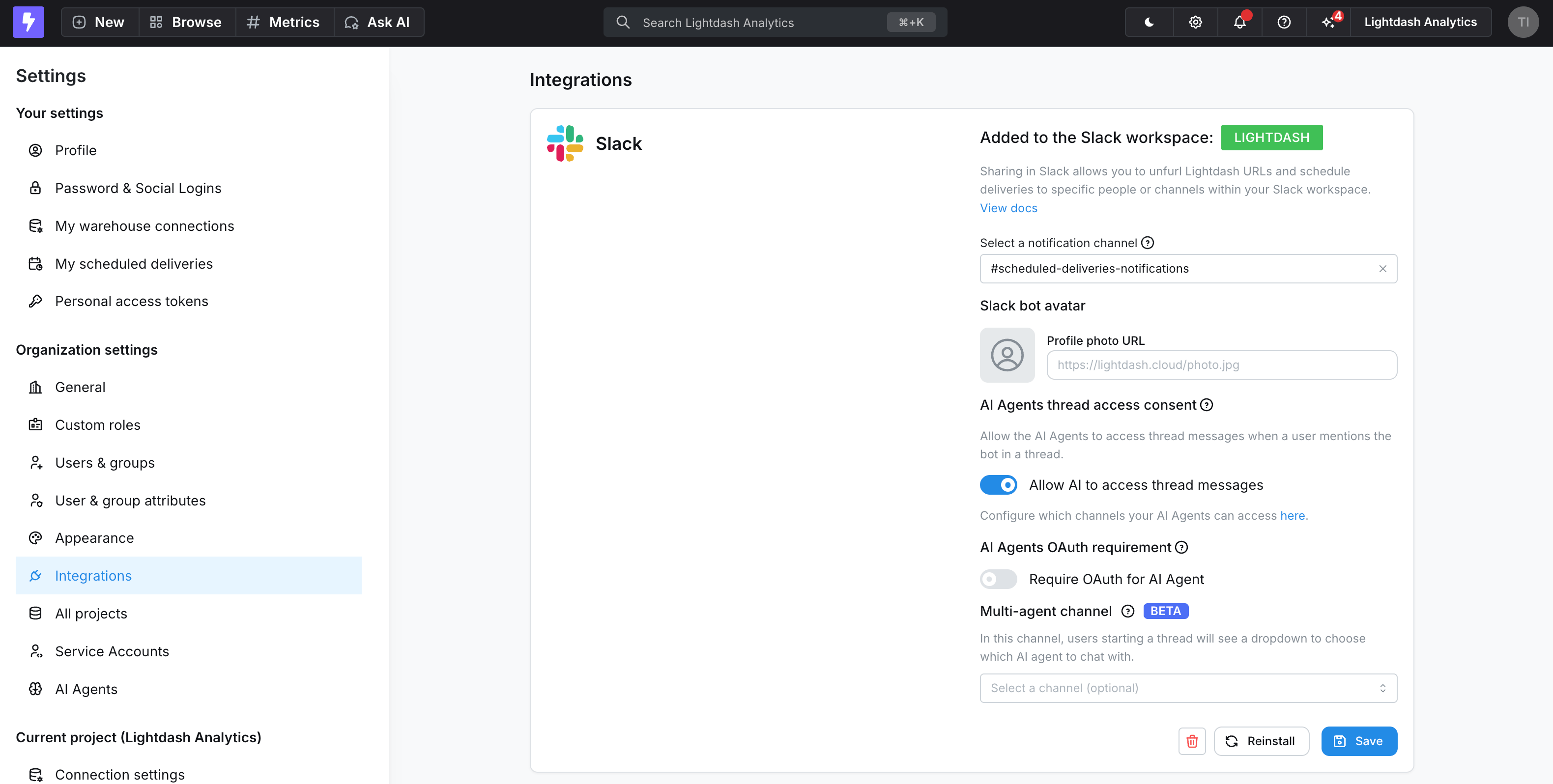
Select a notification channel
Choose a Slack channel where Lightdash sends alerts when any scheduled delivery in your organization fails. Add the Lightdash app to that channel for notifications to work.Slack bot avatar
Customize the app’s avatar by adding an image URL in the Profile photo URL field. Slack recommends a square image at least 512x512 pixels and no larger than 1024x1024 pixels.AI agents configuration
Control how AI agents interact with your Slack workspace — whether they can read thread messages when mentioned, and whether OAuth authentication is required to use them. For channel limitations and multi-agent support, see Slack channels: single-agent vs. multi-agent.User attribution and OAuth
By default, every AI agent conversation in Slack is attributed to the user who installed the Slack app (or created the agent): all questions appear as if they came from that single user, and every query runs with that user’s permissions. Enable the AI Agents OAuth requirement toggle to identify each Slack user individually. When enabled:- Each Slack user authenticates with Lightdash before using the AI agent.
- Conversations are attributed to the individual asking the question.
- Queries respect each user’s own user attributes and permissions.
Using the Slack integration
Once installed, the Slack integration surfaces Lightdash content and delivers it where your team already works. This video walks through the main ways to use it:Unfurl Lightdash links
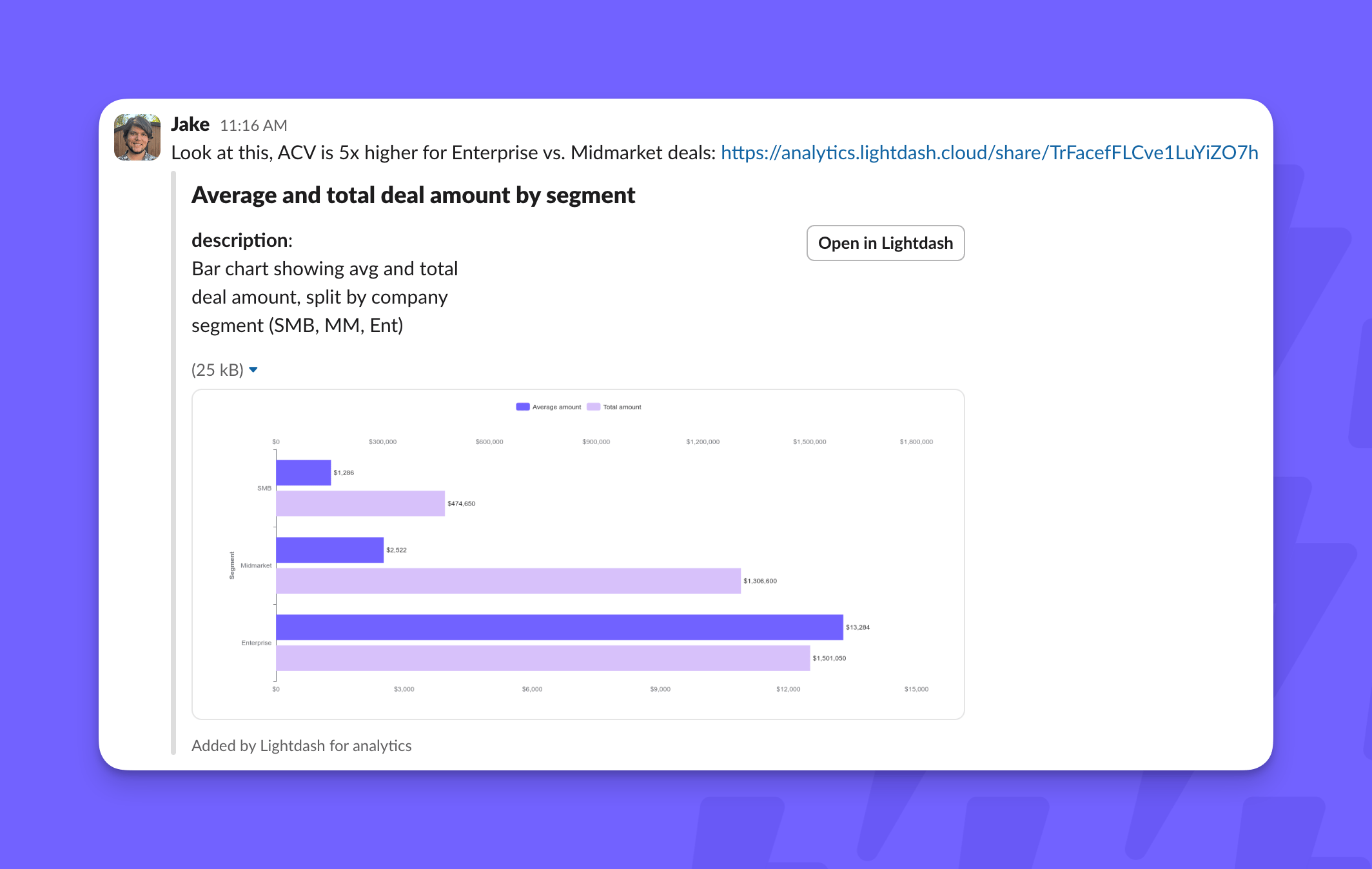
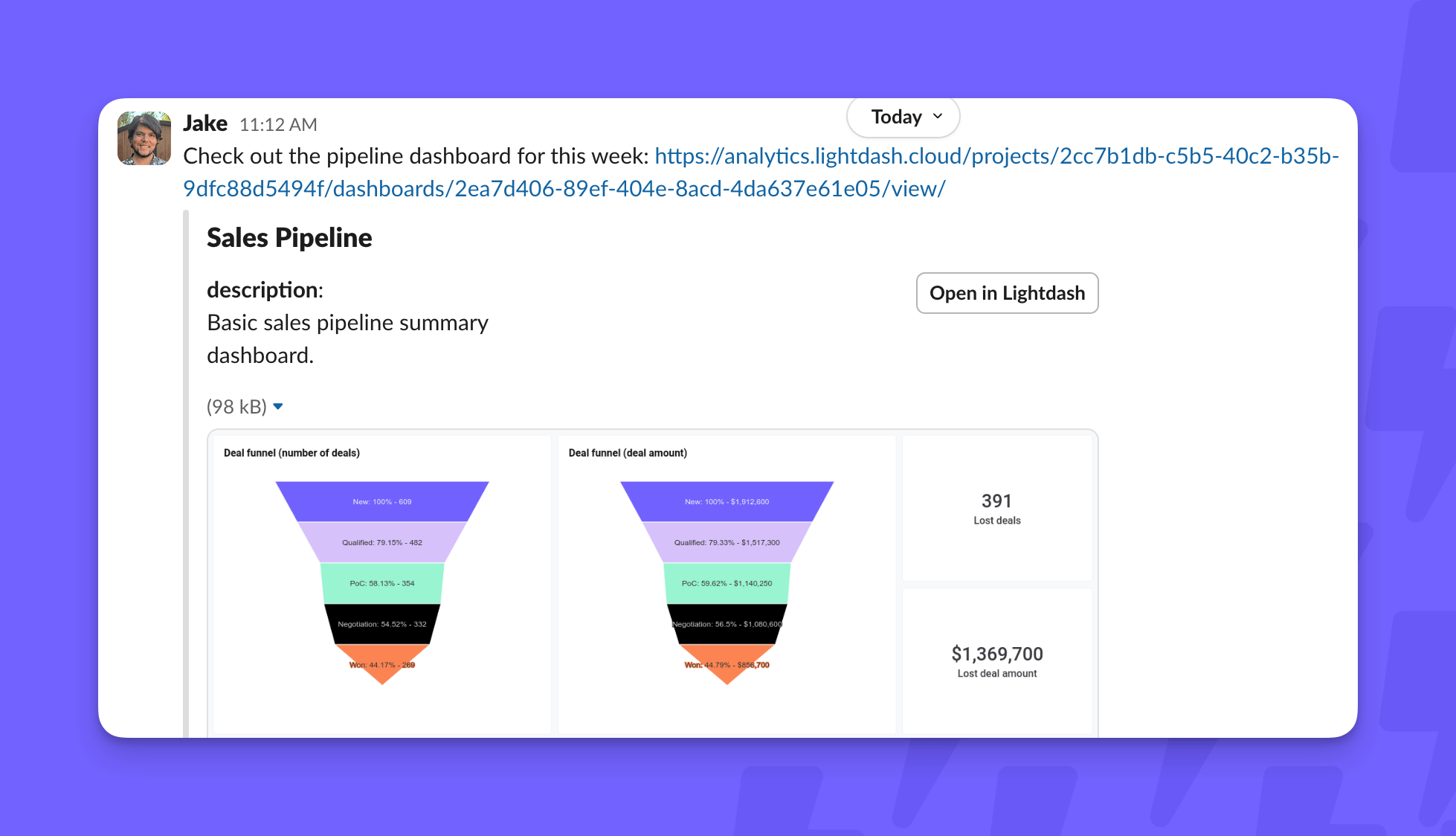
The app automatically unfurls links you share from your Lightdash project. Invite the app to a channel first, and it will unfurl links there — both links copied from the URL bar and “share” links copied with the link icon. Chart and dashboard links are supported.Link previews are generated with the credentials of the user who installed the Slack app, so previews reflect that user’s data access — not the permissions of whoever shares the link. If the installer’s warehouse session expires, previews fail until they re-authenticate.
Scheduled deliveries
Use Slack as a destination for scheduled deliveries. Schedule refreshes for charts or dashboards and push the results into a Slack channel or DM. Charts look like this when you attach an image: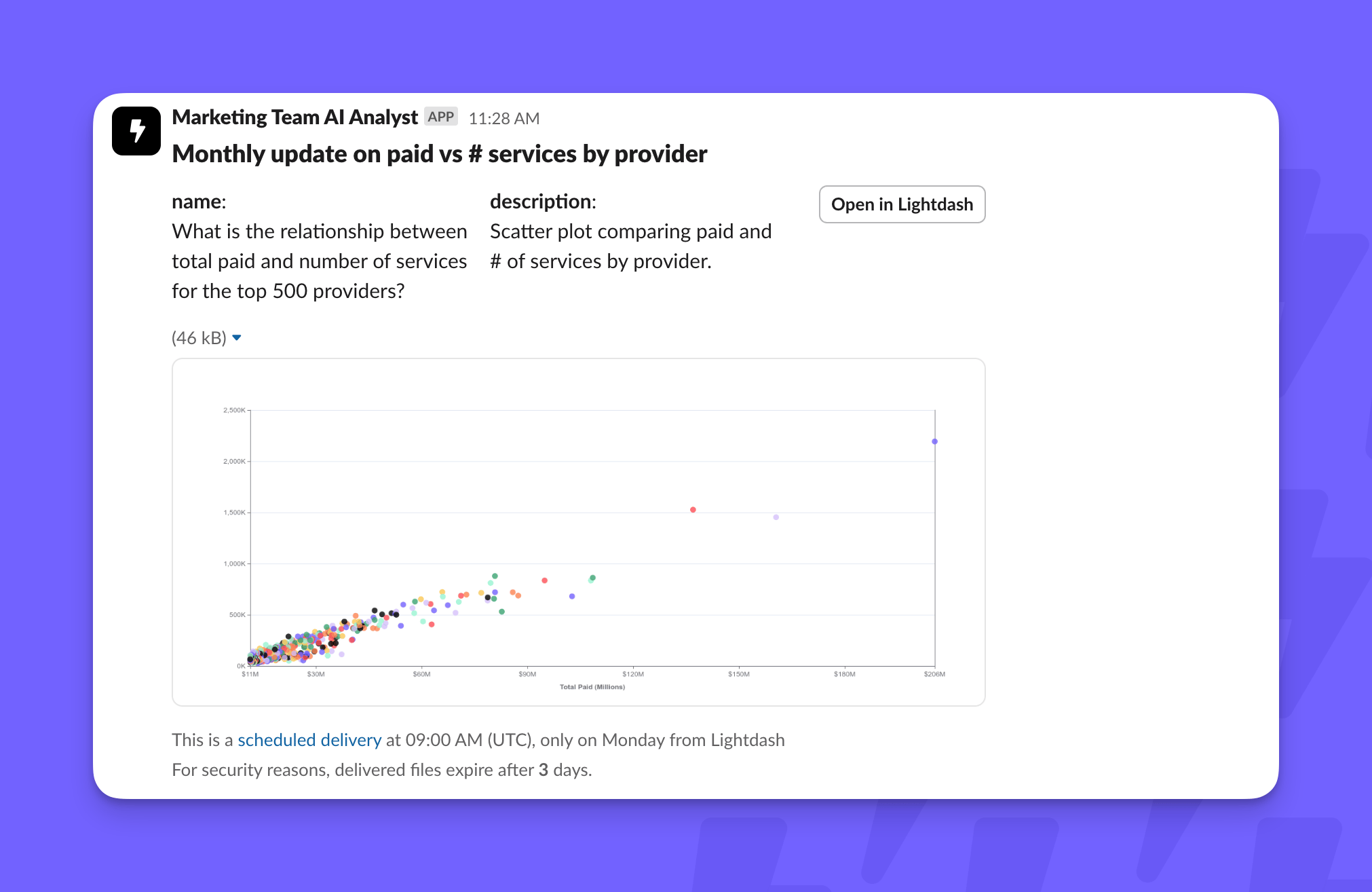
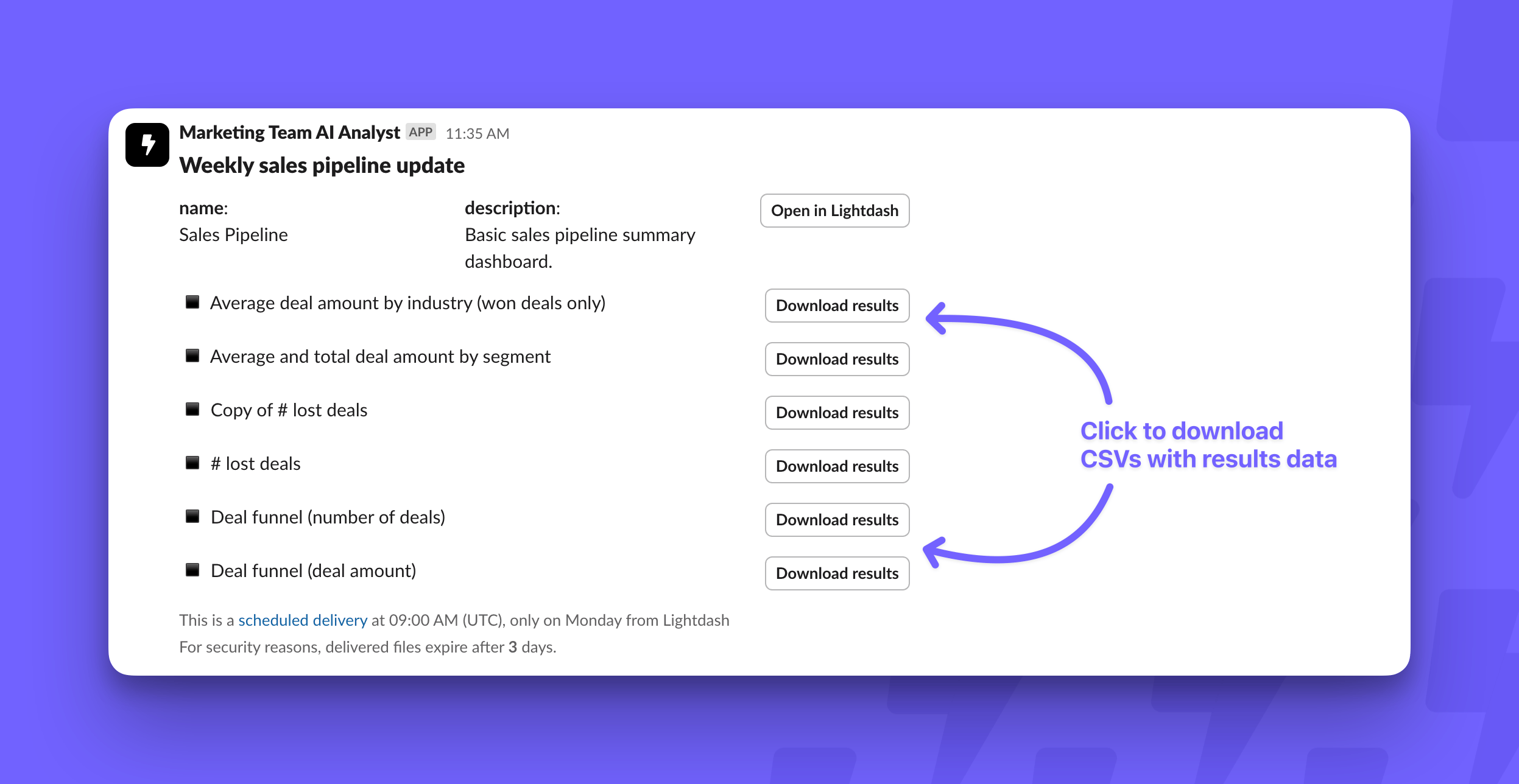
Saved chart alerts in Slack
Beyond scheduled deliveries, you can set up alerts on saved charts that only send to Slack when your criteria are met.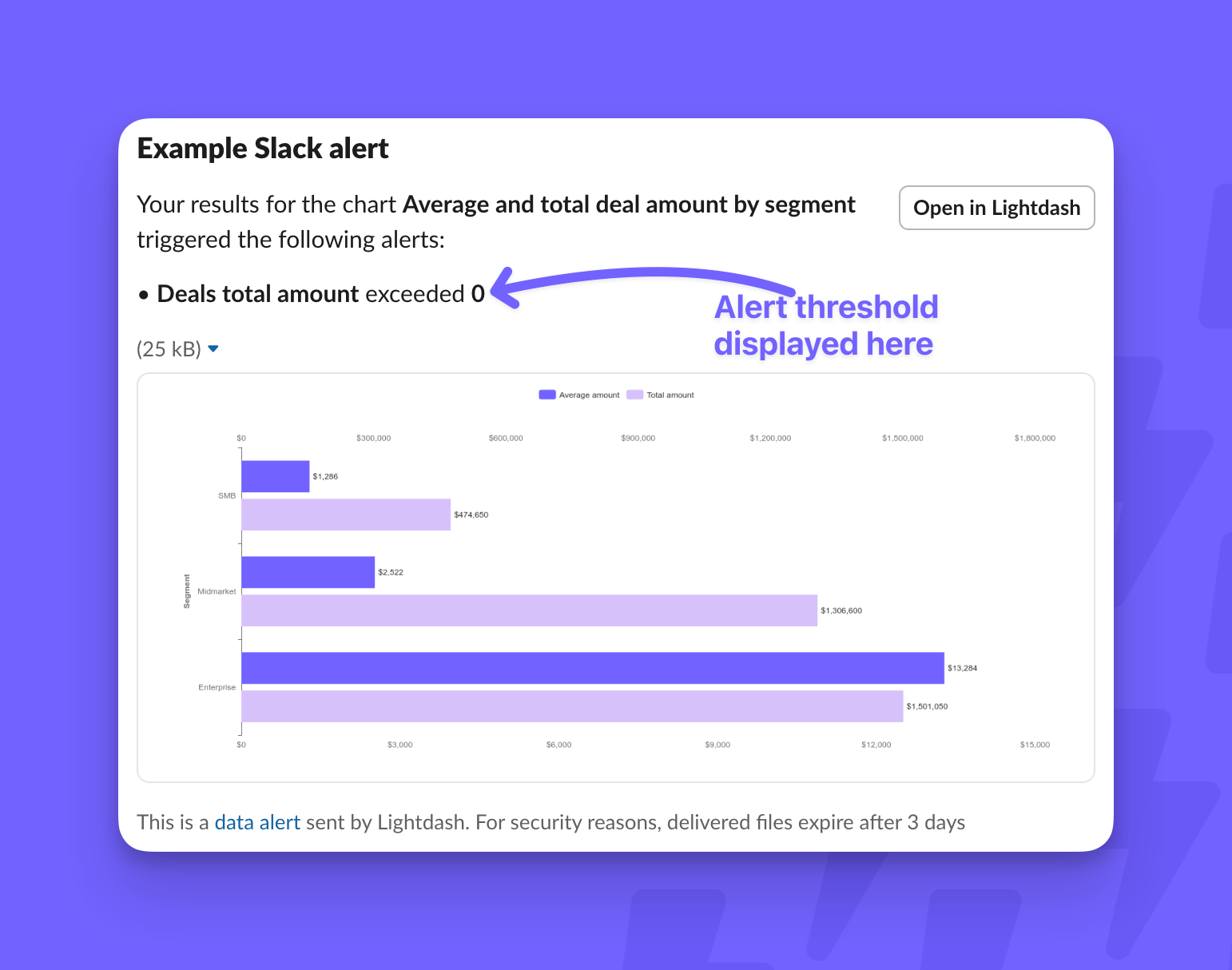
Use Lightdash in private channels
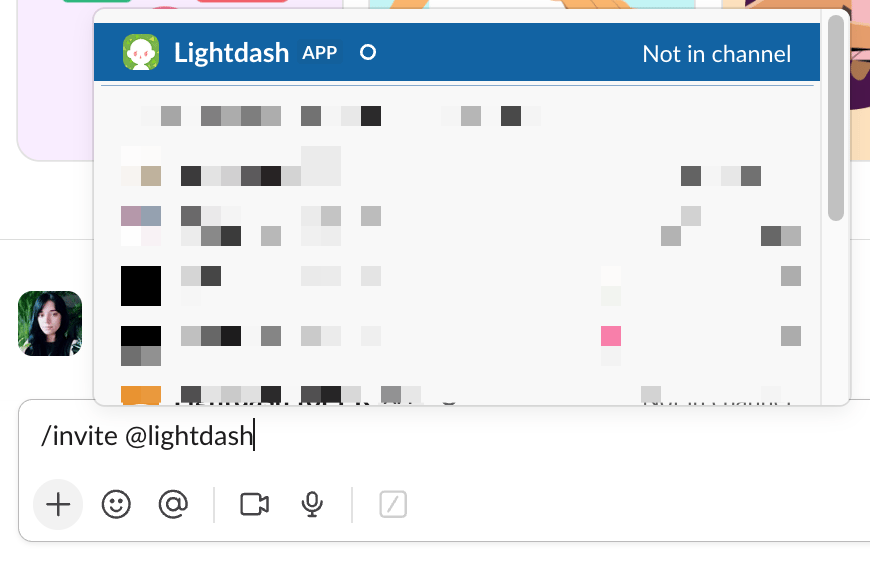
Slack doesn’t expose private channels to apps by default, so add the Lightdash app to a private channel manually. Either:- Invite the app — type
/invite @Lightdashin the channel.
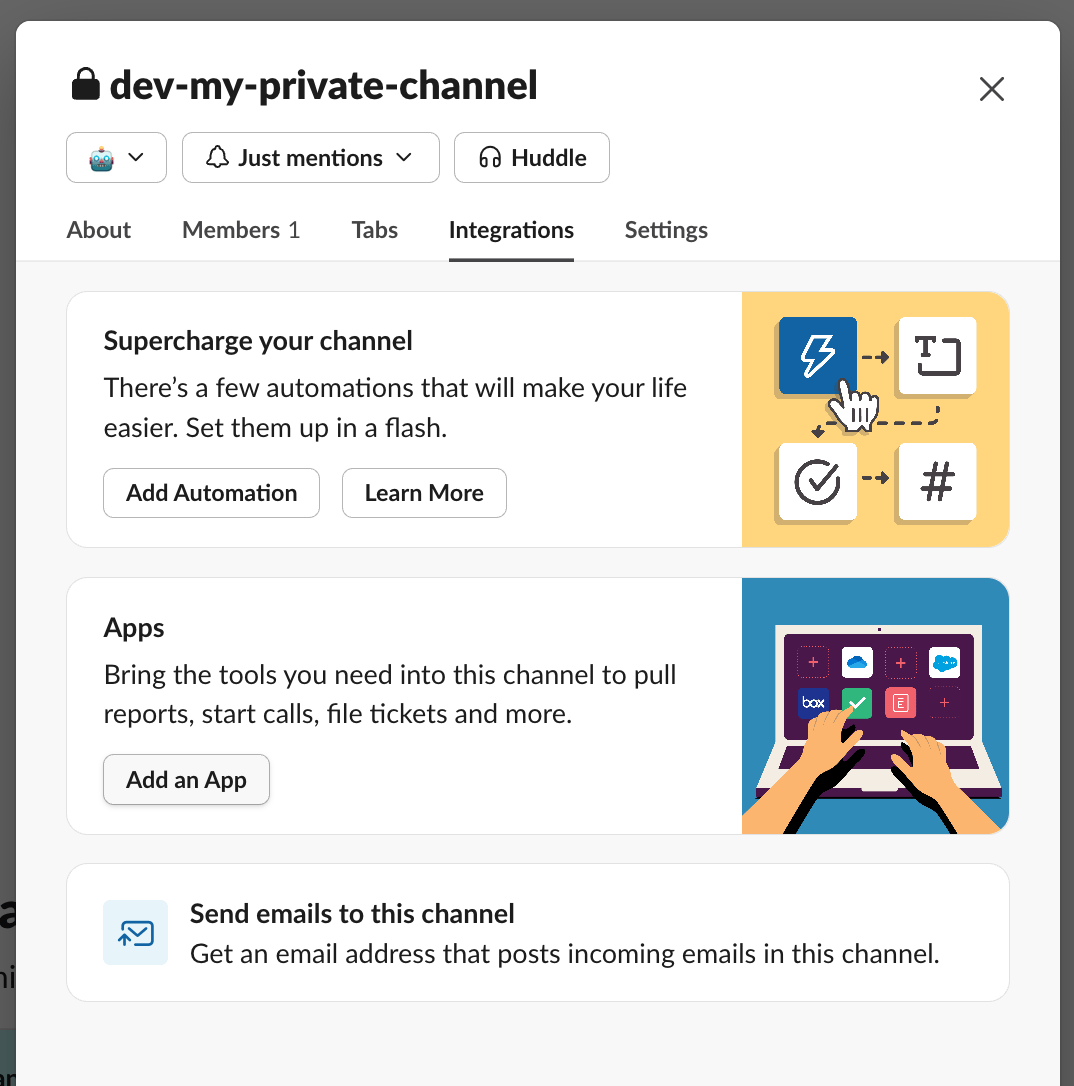
- Use channel settings — click the channel name, go to Integrations → Add an app, then search for and add Lightdash.
- Refreshing the channel list in the Lightdash UI, or
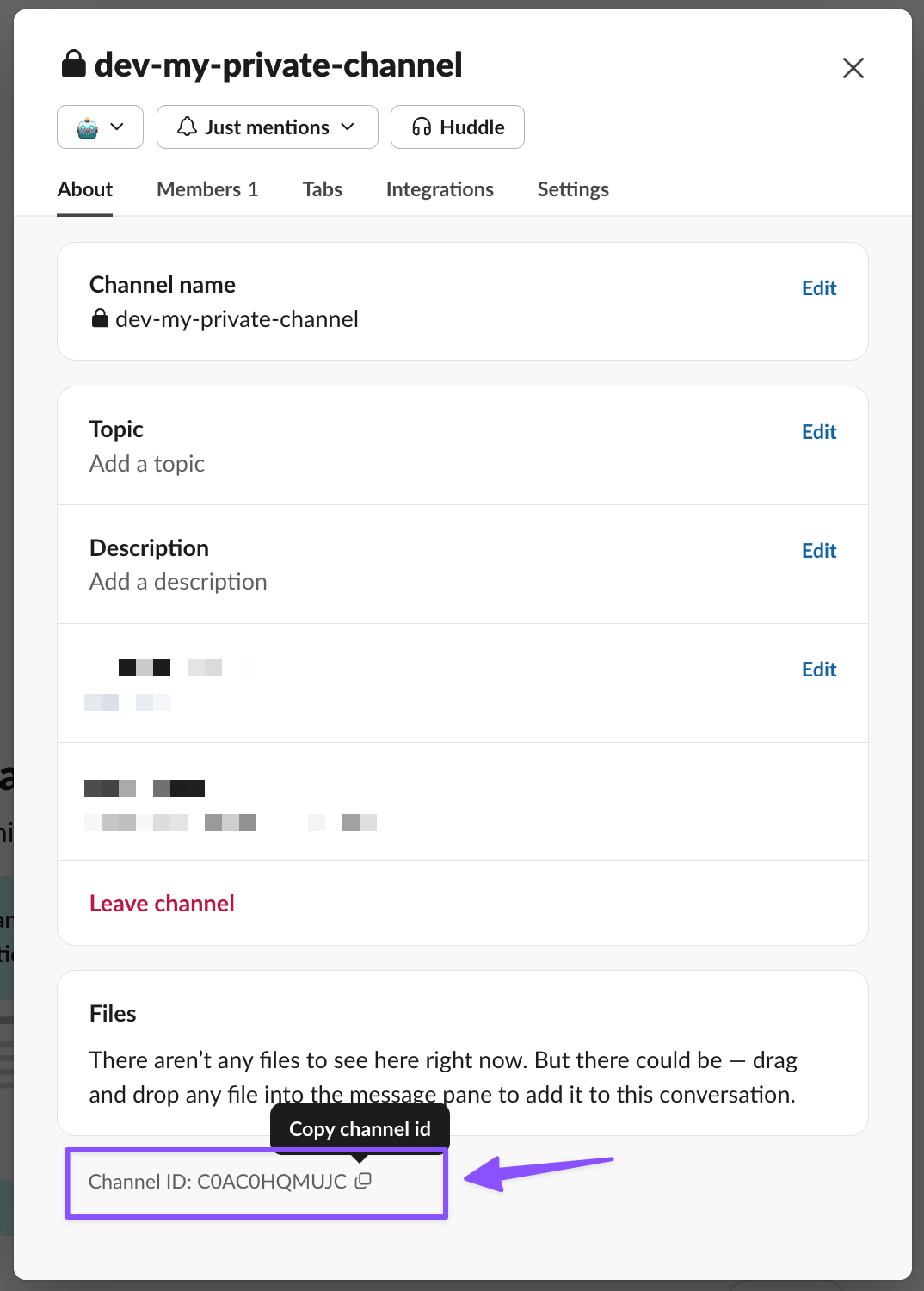
- Looking up the channel by ID — in Slack, right-click the channel name, select View channel details, and copy the Channel ID from the bottom of the modal.

AI analyst agents
AI analyst agents use the Slack integration to chat with your data and build charts in Slack. Once you have access to AI analysts, give them access to Slack threads in your integration settings. Trigger a response by mentioning the Lightdash app in your message. There’s a single Lightdash app to mention — you don’t specify a particular agent. Lightdash routes your question to the most appropriate agent, and prompts you to choose if it’s unclear.By default, all Slack AI agent conversations are attributed to the user who installed the Slack app. To attribute conversations to individual Slack users and respect their data permissions, enable the AI Agents OAuth requirement in your Slack integration settings.