

Tables and can be used like the tables that come from your dbt project.
A virtual view won’t be saved to or managed in your dbt project.If you’re expecting to use this query regularly, we recommend writing it back to dbt.
Create a virtual view
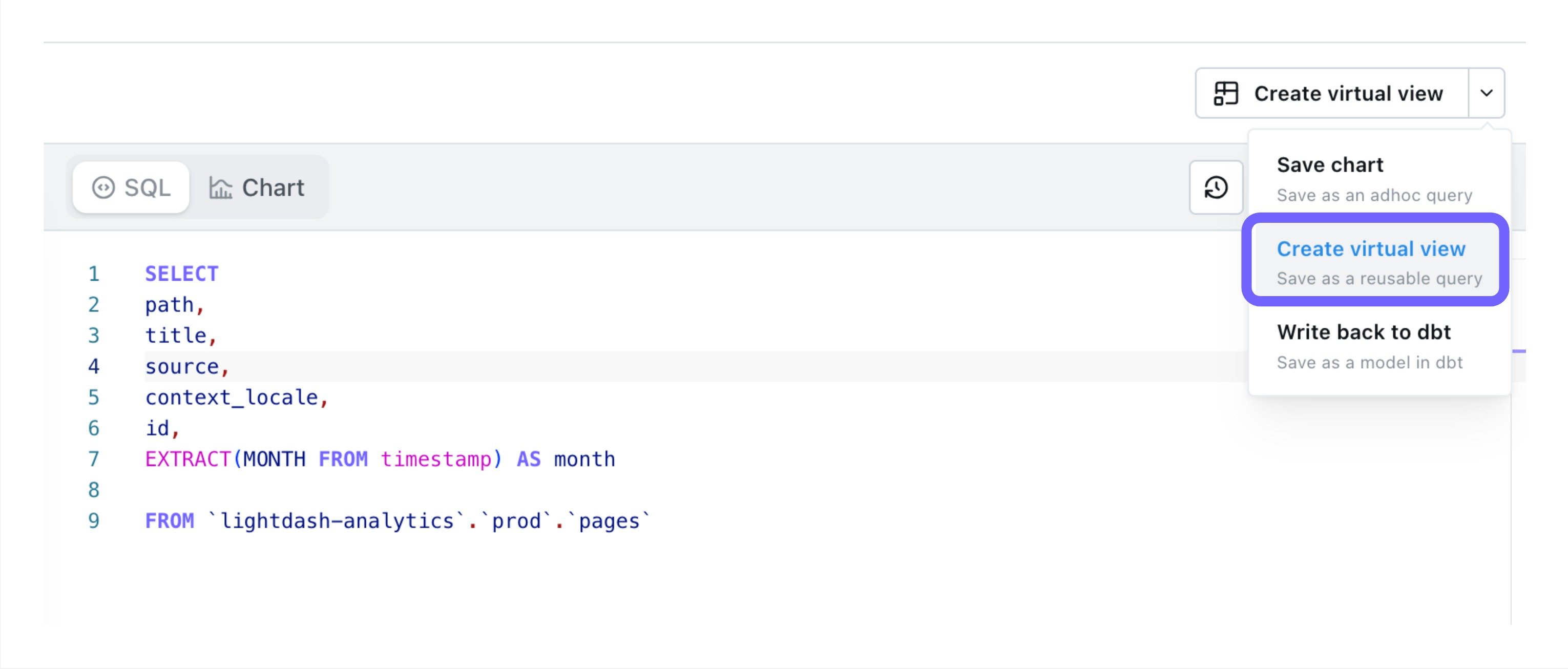
To create a virtual view from the SQL Runner, select theCreate Virtual View option from the save drop-down.
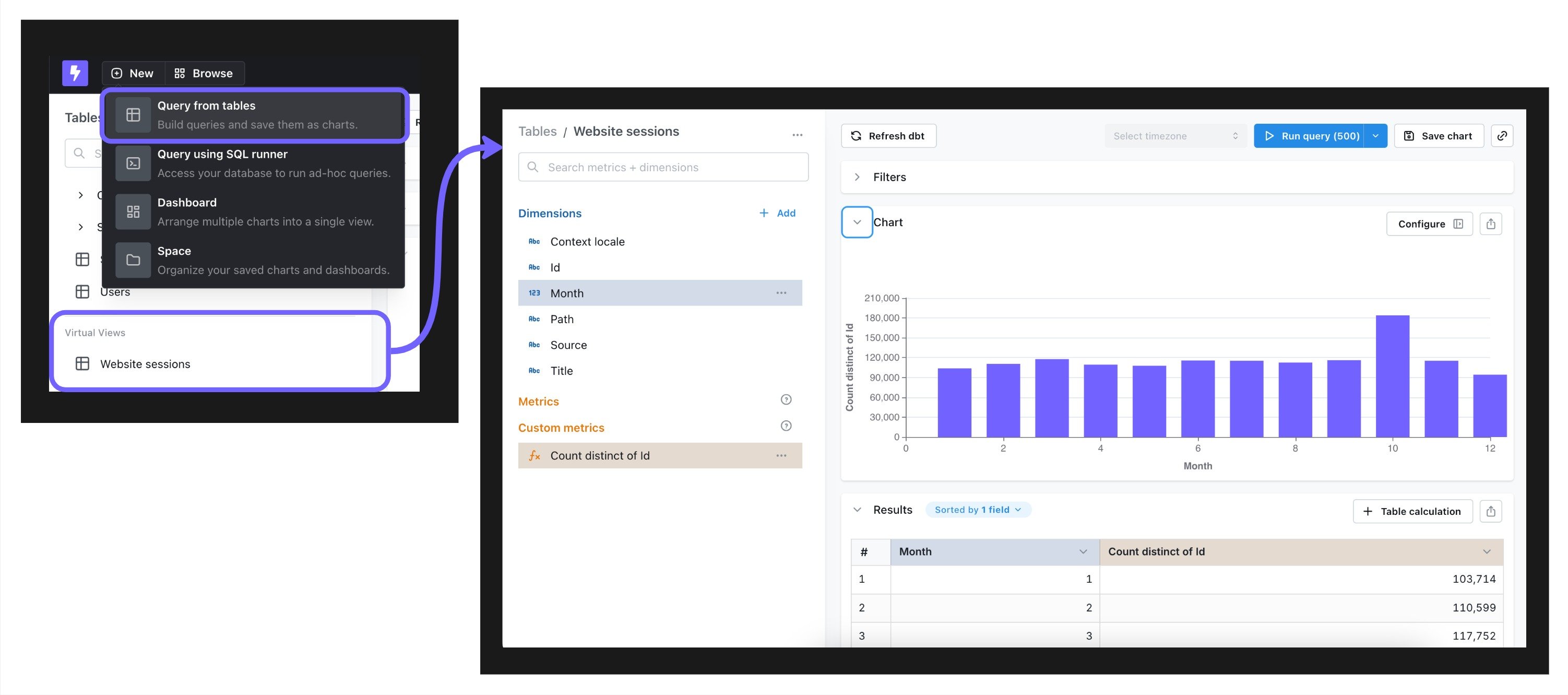
Edit or delete a virtual view
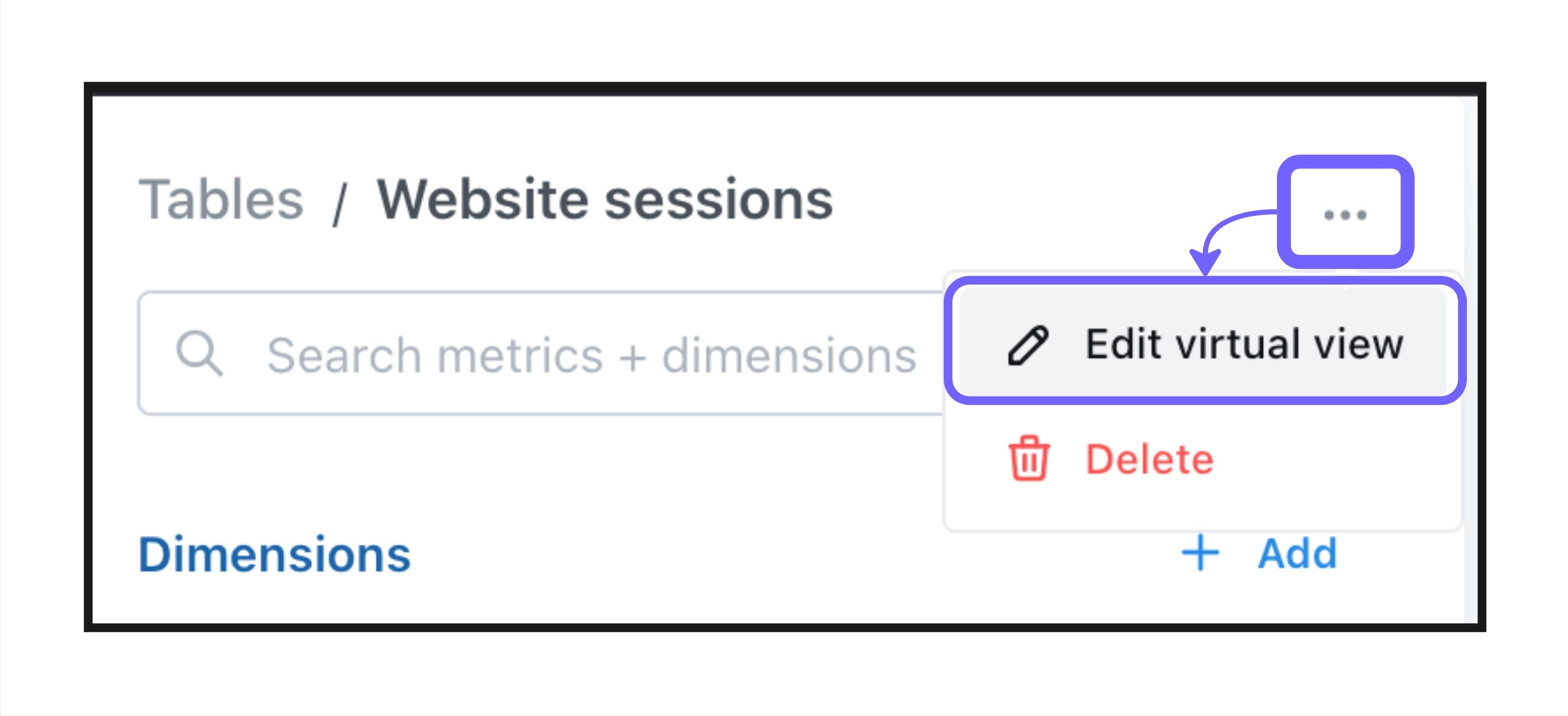
To edit a virtual view, you need to open it in the Explorer, then beside the name, there’s a three-dot-menu where you can choose toedit or delete the virtual view.
Manage virtual views as code
You can manage virtual views as code alongside your charts and dashboards with the Lightdash CLI. This is useful when you want to review virtual-view changes in a pull request, promote the same SQL across projects (for example from a staging to a production Lightdash instance), or template a set of virtual views for reuse. Virtual views are opt-in — a barelightdash download does not pull them, and a bare lightdash upload does not push them. You have to ask for them explicitly with --include-virtual-views or --virtual-views <slug>.
Download virtual views
Use--include-virtual-views to download every virtual view in the project, or --virtual-views <slug> to download specific ones:
lightdash/virtual-views/<slug>.yml. To skip virtual views when a filter is otherwise selecting them, add --skip-virtual-views.
Virtual view YAML
Virtual views serialize to a portable YAML contract keyed by a project-scopedslug (the immutable explore name used by any charts, dashboards, or joined models that reference the view). The name is the mutable display label shown in the UI.
Virtual view YAML example
Upload virtual views
Use--virtual-views <slug> on lightdash upload to target specific views, or run a bare upload (without any content filters) to include every virtual view in lightdash/virtual-views/.
- created — no view with this slug existed yet.
- updated — the view existed and one or more fields changed.
- skipped — the file is byte-equivalent to the current view, so nothing is sent.
Validation errors
Uploads fail fast with aParameterError when the YAML isn’t a valid virtual view. Common causes:
slugis empty, contains slashes, or isn’t canonicalsnake_case.nameorsqlis empty.columnsis empty, contains duplicate or blankreferencevalues, or uses an unknowntype.parametersincludes keys that thesqlnever references.contentTypeisn’tvirtual_vieworversionisn’t the supported version.
lightdash upload.
Destructive changes and --force
Removing a column or changing its type is a destructive change — any charts or dashboards that reference the removed or retyped column will break. To protect against accidental breakage, the CLI rejects destructive column changes by default and lists the offending columns in the error.
Re-run the upload with --force when the change is intentional:
--force also allows replacing a virtual view whose cached state can no longer be represented as YAML (for example, a legacy view with non-subquery SQL).
Permissions
Virtual view download and upload reuse the same content-as-code scopes as charts and dashboards:view:ContentAsCodeis required to download virtual views.manage:ContentAsCodeis required to upload virtual views. Uploads also check the virtual-view edit permissions the UI enforces, so the CLI, API, and app stay in lockstep.